

Creating a skill
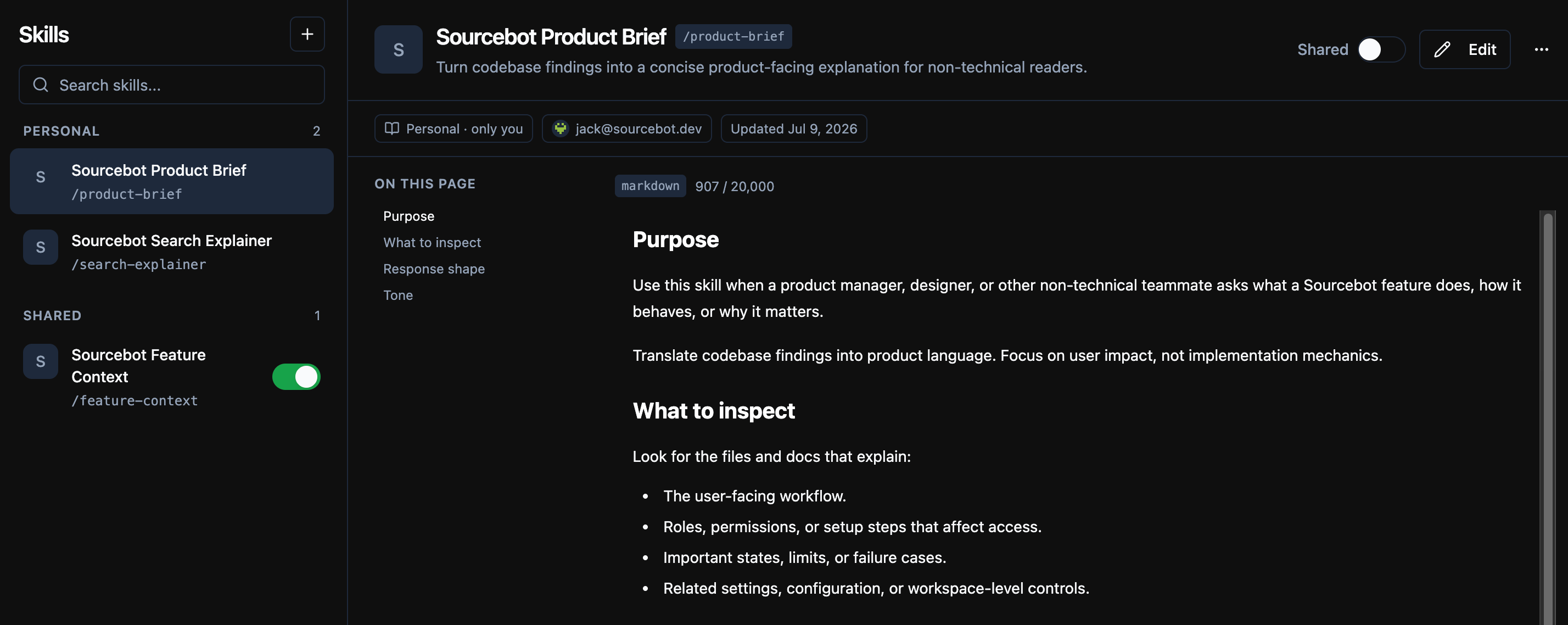
Go to Settings -> Skills and click Add skill. You can create a skill in three ways:- New skill: Create a skill directly in Sourcebot.
- Import from file: Upload a local
.mdor.markdownfile and review it before saving. - Import from repository: Choose a markdown file from an indexed repository and keep the skill synced to that file.
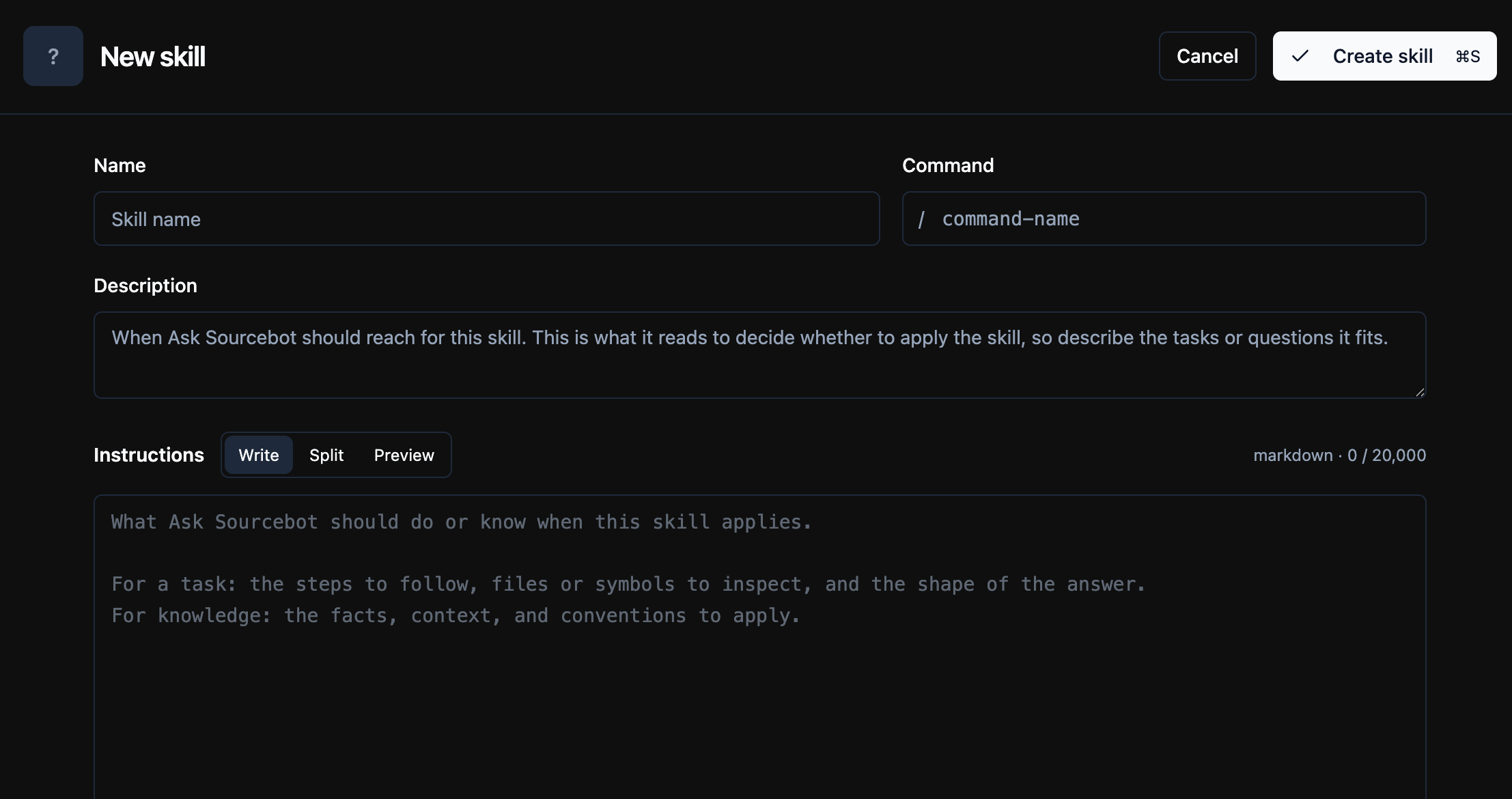
- Name: A recognizable name for the skill.
- Command: The slash command users type to run the skill, such as
/deep-research. - Description: A short summary of when Ask Sourcebot should use the skill.
- Instructions: The markdown context or guidance Ask Sourcebot uses when the skill runs.
Writing instructions
Keep the description specific. Ask Sourcebot uses it to decide when a skill is relevant, and users see it when browsing slash commands. Put the useful context or guidance in the instructions.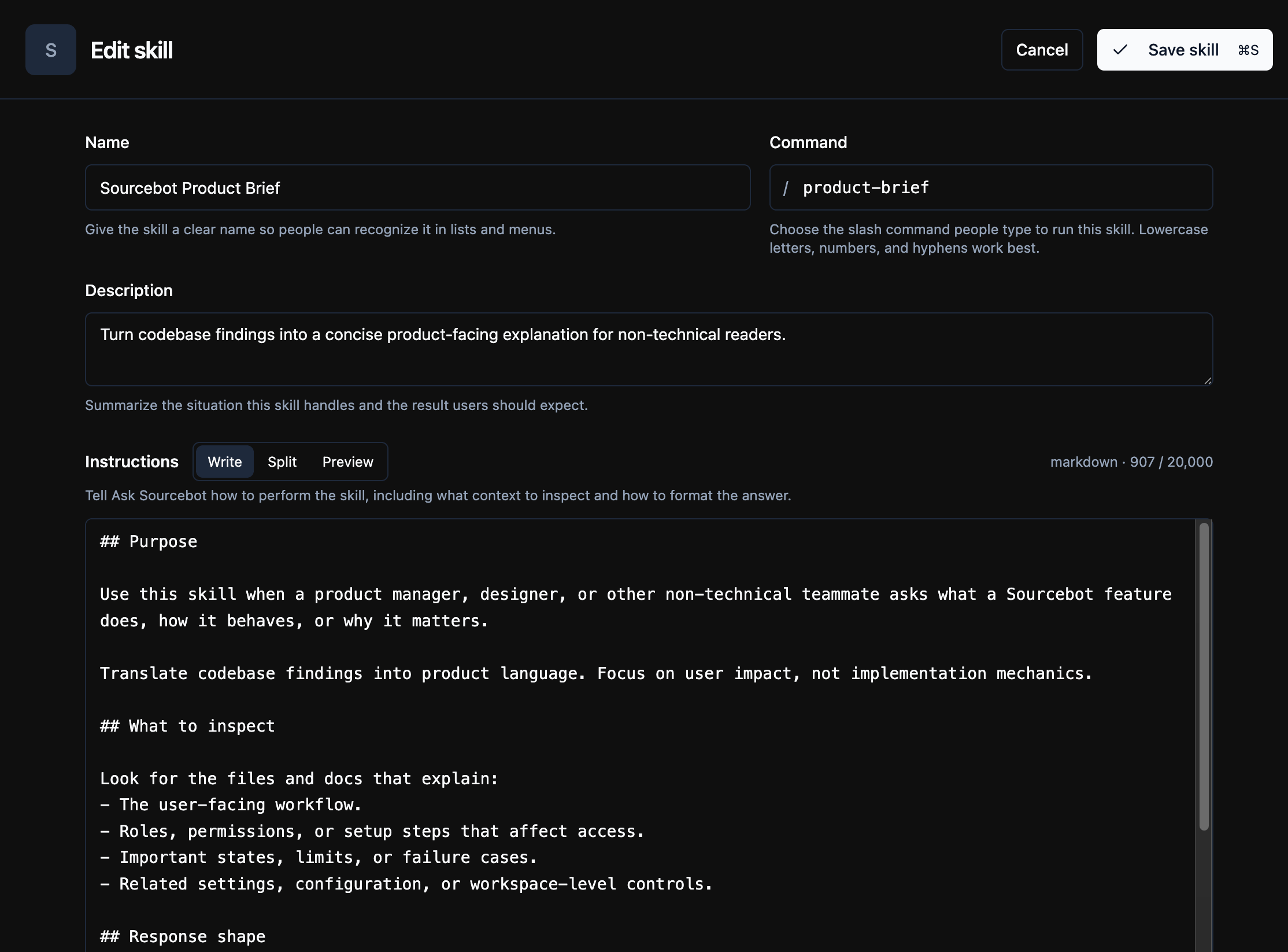
Using skills in chat
Type/ at the start of an Ask Sourcebot prompt to browse available skill commands.
When you select a skill, Ask Sourcebot expands the command into that skill’s instructions before answering. If the instructions include file mentions, those files are added to the chat context automatically.
Ask Sourcebot may also load a matching skill automatically. When this happens, the chat details show the loaded skill name and command.
Personal and shared skills
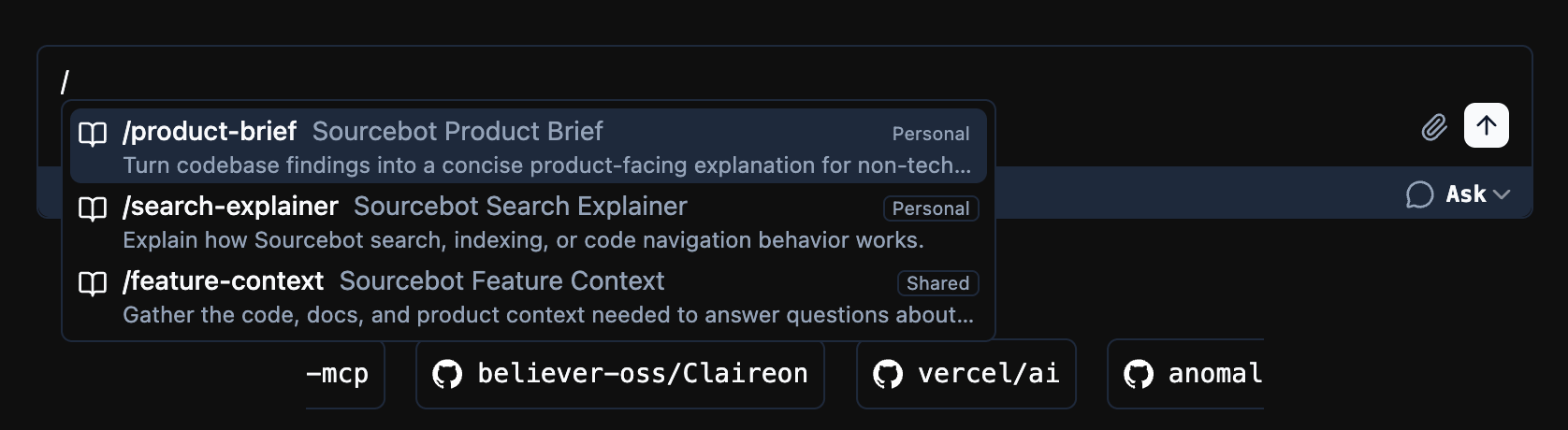
Skills can be personal or shared:- Personal skills are private to you in the current workspace.
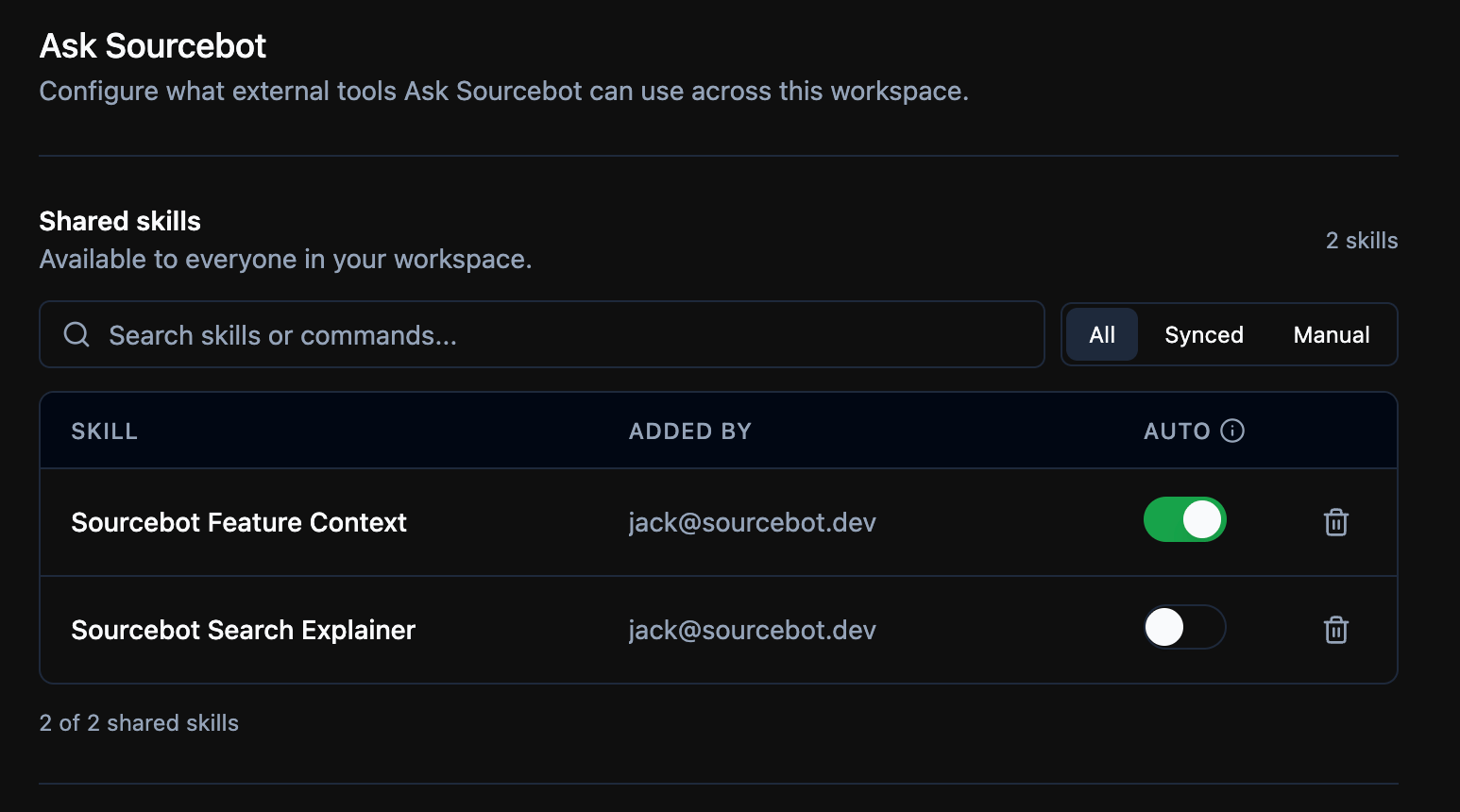
- Shared skills are published to the workspace skill catalog.
Importing skills
Import from file
File imports support.md and .markdown files. If the file has front matter, Sourcebot uses it to prefill the skill name, command, and description.
Supported front matter fields:
title instead of name, and command instead of slug.
After importing a local file, the skill is editable in Sourcebot.
Import from repository
Repository imports let you choose a markdown file from an indexed repository. Sourcebot prefills the create form from the file so you can review it, add a missing description, and save. The resulting skill stays synced to that file. Synced skills behave like manually-created skills, with a link back to their source file:- Every field stays editable. Local edits are kept until you sync.
- Sourcebot checks whether the indexed source file has changed.
- When an update is available, use Update from source to replace the skill’s content with the file’s.
- When the skill is already up to date, use Force sync to restore the content from the source file.
- Either action warns you first if it would overwrite local edits.
- Fields the source file does not provide (for example, a missing
description) keep their local values when you sync.

Permissions and synced skills
Synced skills mirror content from a repository file, so Sourcebot only shows them to users who can access the source repository. If repository permission syncing is enabled, sharing a synced skill shows a warning before publishing it to the workspace. Members without access to the source repository will not see the skill. Organization owners can still see and manage shared synced skills from workspace settings, even if they do not have access to the source repository.Managing skills
From Settings -> Skills, you can:- Search personal and shared skills.
- Create, edit, delete, or share skills.
- Add or remove shared skills from your commands.
- Make a shared skill personal if you manage it.
- Update synced skills from their source file.
- Up to date: The skill matches the indexed source file.
- Update available: The indexed source file has changed.
- Source file not found: The file was renamed, deleted, or no longer resolves at the imported revision.
- Source repo unavailable: The repository is no longer available or visible.