

Use cases
- Context for local agents: Plug the MCP into coding agents like Cursor, Claude Code, or Copilot to give them context across your entire codebase, not just the open workspace.
- Building autonomous AI agents: Use Sourcebot as a code context layer for multi-agent systems that review PRs, auto-fix bugs, and answer questions across the company.
Getting Started
Sourcebot MCP uses a Streamable HTTP transport hosted at the/api/mcp route. Two authorization mechanisms are supported:
- OAuth (preferred): MCP clients that support OAuth 2.0 will automatically handle the authorization flow and issue a short lived access token. No API key or manual token management required.
- API key: Any MCP client can authorize using a Sourcebot API key passed as a
Authorization: Bearer <key>header. Create one in Settings → API Keys.
Note the following about these examples:
- The examples add the MCP server and connect it to Sourcebot’s public deployment at app.sourcebot.dev. Replace the URL with your own Sourcebot deployment as needed.
Claude Code
Claude Code
Claude Code MCP docsRun the following command:Replace
- OAuth
- API Key
https://app.sourcebot.dev with wherever your Sourcebot instance is hosted. Claude Code will automatically handle the OAuth 2.0 authorization flow the first time you connect.Cursor
Cursor
Cursor MCP docsGo to: Replace
Settings -> Cursor Settings -> Tools & MCP -> New MCP ServerPaste the following into your ~/.cursor/mcp.json file:- OAuth
- API Key
https://app.sourcebot.dev with wherever your Sourcebot instance is hosted. Cursor will automatically handle the OAuth 2.0 authorization flow the first time you connect.VS Code
VS Code
VS Code MCP docsAdd the following to your .vscode/mcp.json file:Replace
- OAuth
- API Key
https://app.sourcebot.dev with wherever your Sourcebot instance is hosted. VS Code will automatically handle the OAuth 2.0 authorization flow the first time you connect.Codex
Codex
Codex MCP docs
- OAuth
- API Key
Run the following command:Replace
https://app.sourcebot.dev with wherever your Sourcebot instance is hosted. Codex will automatically detect OAuth support and prompt you to authorize in your browser when you first connect.OpenCode
OpenCode
OpenCode MCP docsAdd the following to your Replace
opencode.jsonc file:- OAuth
- API Key
https://app.sourcebot.dev with wherever your Sourcebot instance is hosted. OpenCode will automatically handle the OAuth 2.0 authorization flow the first time you connect. You can also manually trigger it with:Windsurf
Windsurf
Windsurf MCP docsGo to: Replace
Windsurf Settings -> Cascade -> Add Server -> Add Custom ServerPaste the following into your ~/.codeium/windsurf/mcp_config.json file:- OAuth
- API Key
https://app.sourcebot.dev with wherever your Sourcebot instance is hosted. Windsurf will automatically handle the OAuth 2.0 authorization flow the first time you connect.Authorization
The Sourcebot MCP server supports two authorization methods: OAuth and API keys. Regardless of which method you use, all MCP requests are scoped to the associated Sourcebot user and inherit the user’s role and permissions. When permission syncing is configured, this includes repository permissions - the MCP server will only surface results from repositories the user has access to.OAuth 2.0
Sourcebot implements an OAuth 2.0 authorization server with support for dynamic client registration (RFC 7591). This means MCP clients can register themselves automatically without any manual setup. Just point your client at the MCP endpoint and it will handle the full authorization flow, prompting you to log in and approve access in your browser the first time you connect. No API key or manual token management is required. Once authorized, Sourcebot issues a short-lived access token (valid for 1 hour) and a refresh token (valid for 90 days). The MCP client handles token refresh automatically, so you stay connected without needing to re-authorize.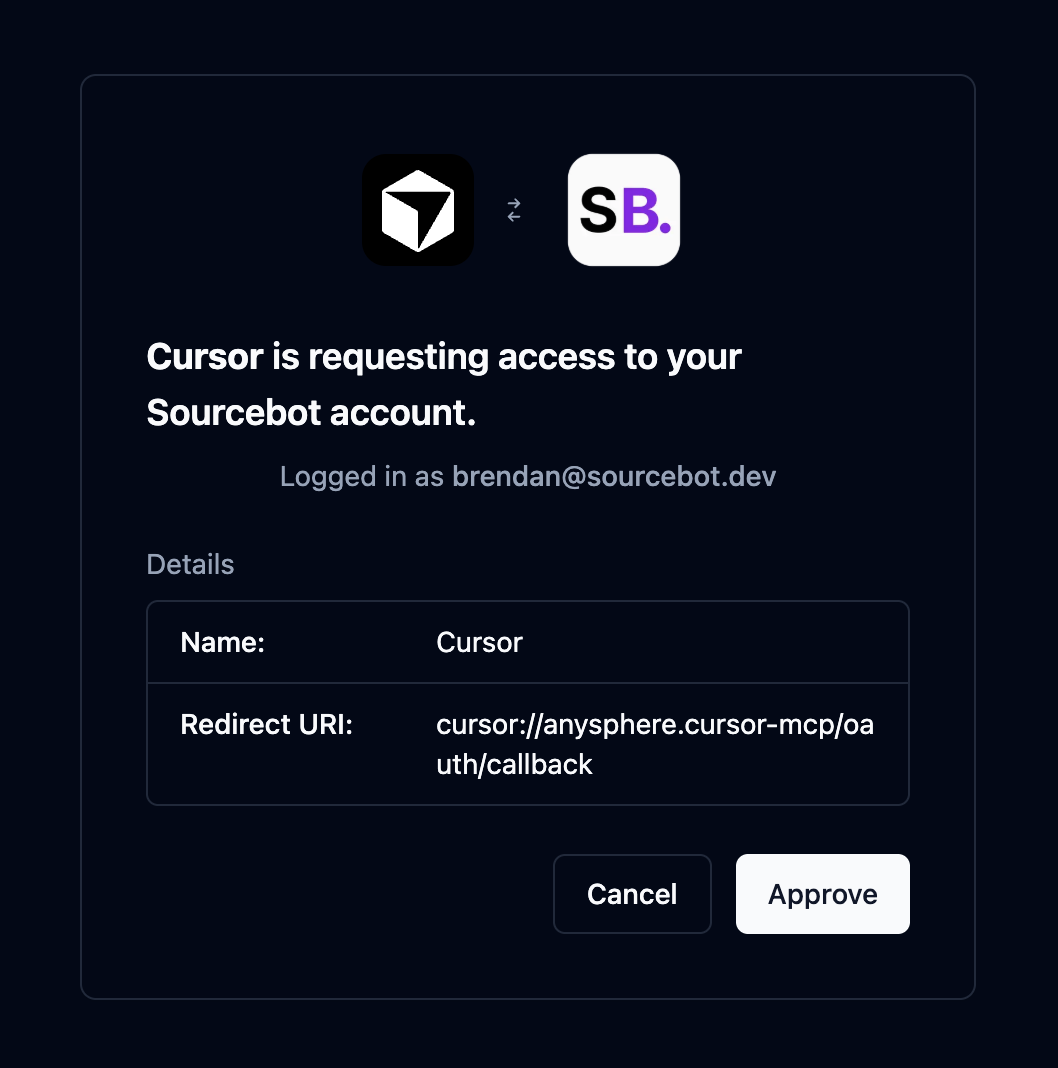
API Key (Bearer token)
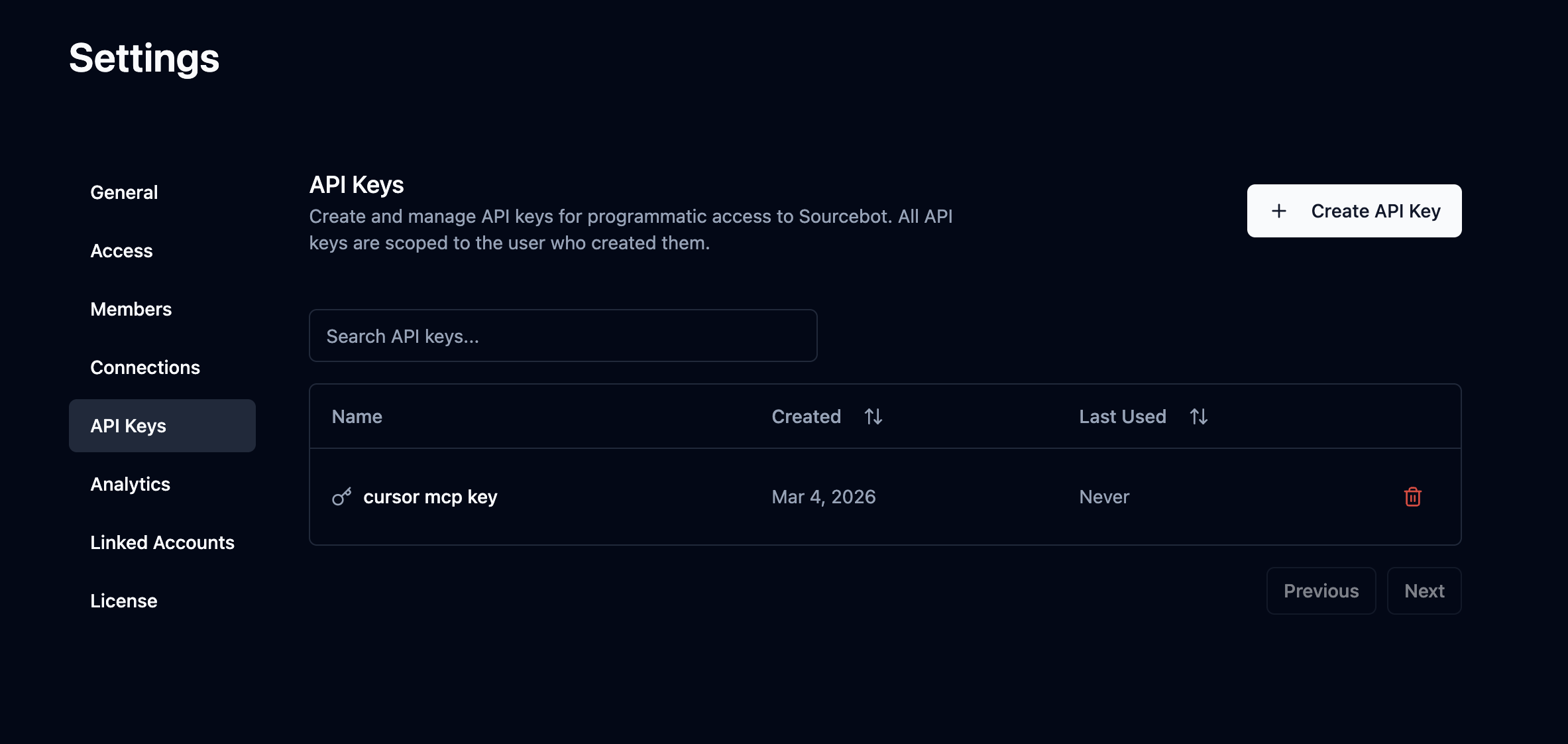
API keys provide a simpler alternative to OAuth that works with any MCP client. Each key is scoped to the user who created it and inherits their permissions. To create one, navigate to Settings → API Keys and click Create API Key. Pass the key as anAuthorization: Bearer <key> header when connecting to the MCP server.
Available Tools
The MCP server is rate limited. Each tool call counts toward your daily request limit.
grep
Searches for code matching a regular expression pattern across repositories, similar to grep/ripgrep. Always case-sensitive. Results are grouped by file and include line numbers.
Parameters:
list_repos
Lists repositories indexed by Sourcebot with optional filtering and pagination.
Parameters:
read_file
Reads the source code for a given file, with optional line range control for large files.
Parameters:
list_tree
Lists files and directories from a repository path. Directories are shown before files at each level.
Parameters:
list_commits
Get a list of commits for a given repository.
Parameters:
list_branches
You can list a repository’s branches, sorted by latest commit date (newest first). Results come from Sourcebot’s local snapshot, not live from the code host. You see branches created or deleted on the code host only after Sourcebot next syncs the repository.
For each branch, you get its name, head commit SHA, latest commit time, isDefault (whether it is the repository’s default branch), and isIndexed (whether code search can search that branch).
Parameters:
glob
Finds files whose paths match a glob pattern across repositories (e.g. **/*.ts, src/**/*.test.{ts,tsx}). Results are grouped by repository.
Parameters:
get_diff
Returns a structured diff between two refs in a repository using a two-dot comparison.
Parameters:
find_symbol_definitions
Finds where a symbol (function, class, variable, etc.) is defined in a repository.
Parameters:
find_symbol_references
Finds all usages of a symbol (function, class, variable, etc.) across a repository.
Parameters:
list_language_models
Lists the available language models configured on the Sourcebot instance. Use this to discover which models can be specified when calling ask_codebase.
Parameters:
This tool takes no parameters.
ask_codebase
Ask a natural language question about the codebase. This tool uses an AI agent to autonomously search code, read files, and find symbol references/definitions to answer your question. Returns a detailed answer in markdown format with code references, plus a link to view the full research session in the Sourcebot web UI.
Parameters:
create_skill
You can create an agent skill: a reusable set of instructions you invoke in Ask Sourcebot as a /<slug> slash command, or that the agent loads automatically when your request matches its description. The skill is personal to you and enabled immediately. The result includes a link to the skill in Settings → Skills.
You need an authenticated user (API key or OAuth) and the Ask Sourcebot feature. Repository-scoped access tokens cannot use this tool.
Parameters:
update_skill
You can edit an existing skill in place. Fields you omit keep their current values. You can edit your personal skills, and shared skills only if you created them and they are enabled. Skills synced from a repository file are rejected; edit those in Settings → Skills. This tool never enables or disables a skill, and never moves it between the personal and shared catalogs.
You need an authenticated user (API key or OAuth) and the Ask Sourcebot feature. Repository-scoped access tokens cannot use this tool.
Parameters:
list_skills
You can list the skills visible to you: your personal skills plus your organization’s shared catalog. Each row includes slug and scope (the pair update_skill needs), enabled, isSynced (linked to a repository file), canEdit (whether update_skill can edit it), and, on shared rows, adopted. Skill instructions are never included.
You need an authenticated user (API key or OAuth) and the Ask Sourcebot feature. Repository-scoped access tokens cannot use this tool.
Parameters: