

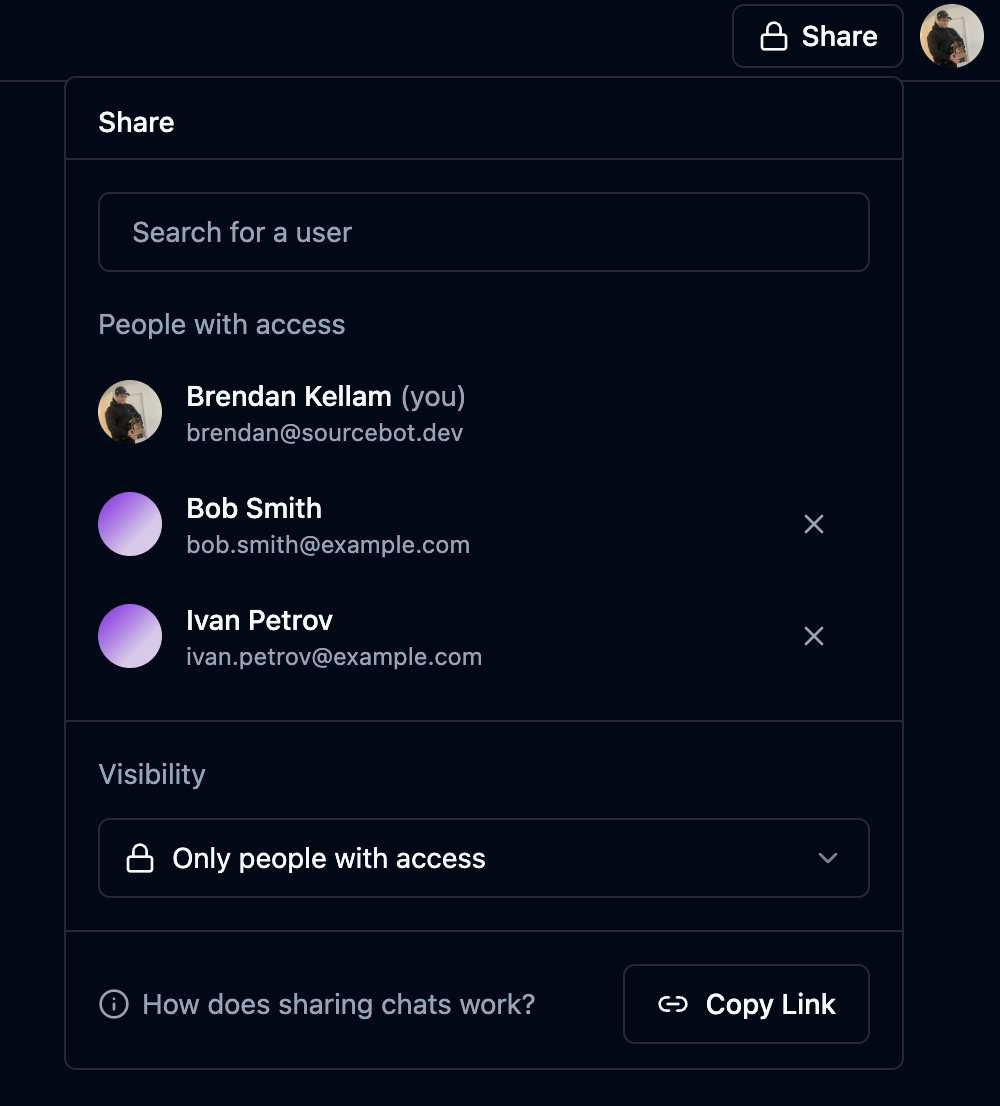
Visibility Options
Every chat has a visibility setting that controls who can access it: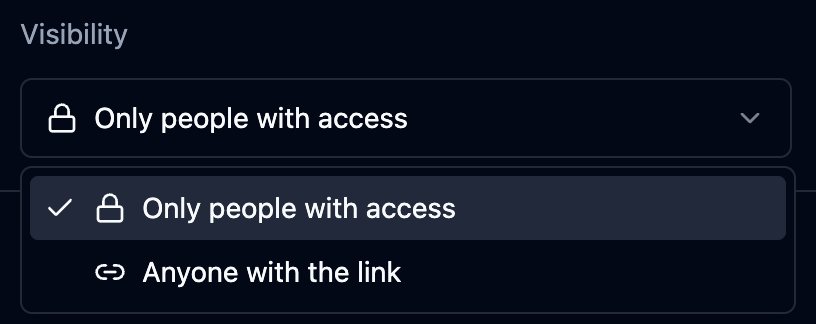
Private (Default)
- Only the chat owner can view the conversation
- Other users cannot access the chat, even with the link
- You can explicitly invite specific org members to view the chat (requires Enterprise license)
Public
- Anyone with the link can view the conversation
- If anonymous access is enabled, no authentication is required to view
- Useful for sharing insights with your team or creating reference documentation
- Public chats can be duplicated by others
Sharing with Specific Users
Sharing with specific users requires an Enterprise License.
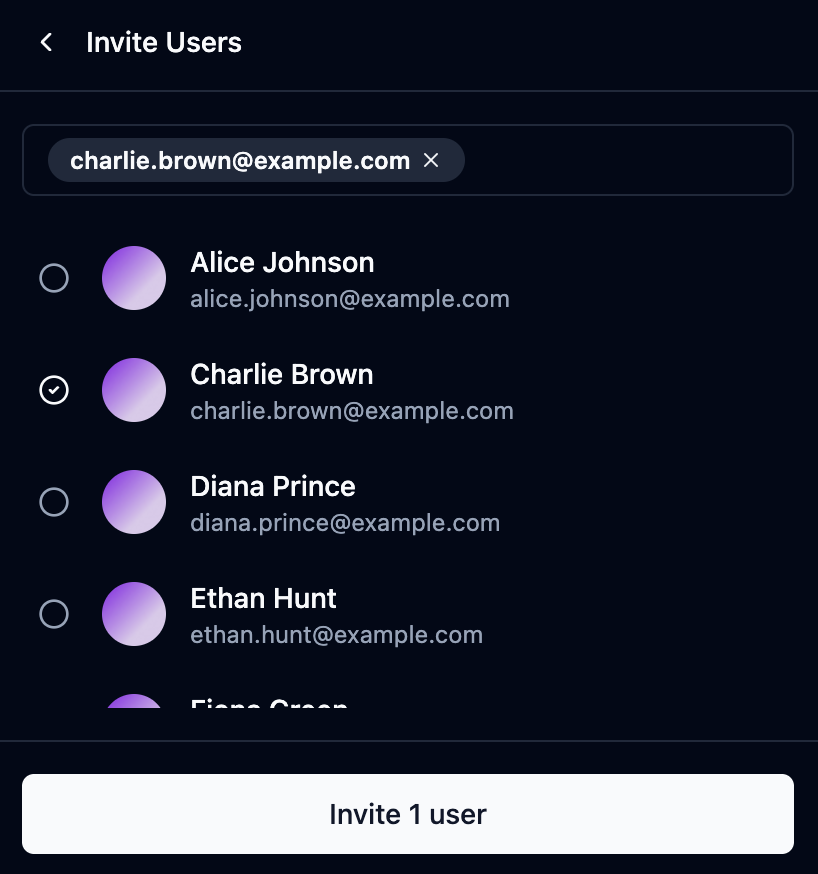
- Open the chat you want to share
- Click the Share button in the top-right corner
- Search for users by name or email
- Select the users you want to invite
- Click Invite to grant them access
- View the full conversation
- See all messages and code citations
- Navigate through referenced code snippets
- Edit or delete the chat
- Send new messages
- Invite other users
Removing Access
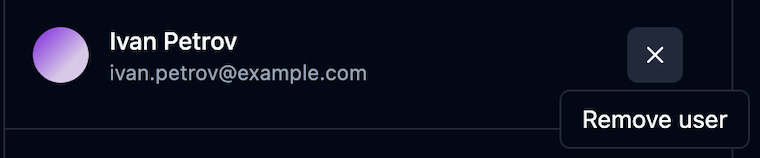
- Open the Share dialog
- Find the user in the “People with access” list
- Click the X button next to their name