  1. In Settings → Models, click Connect provider.
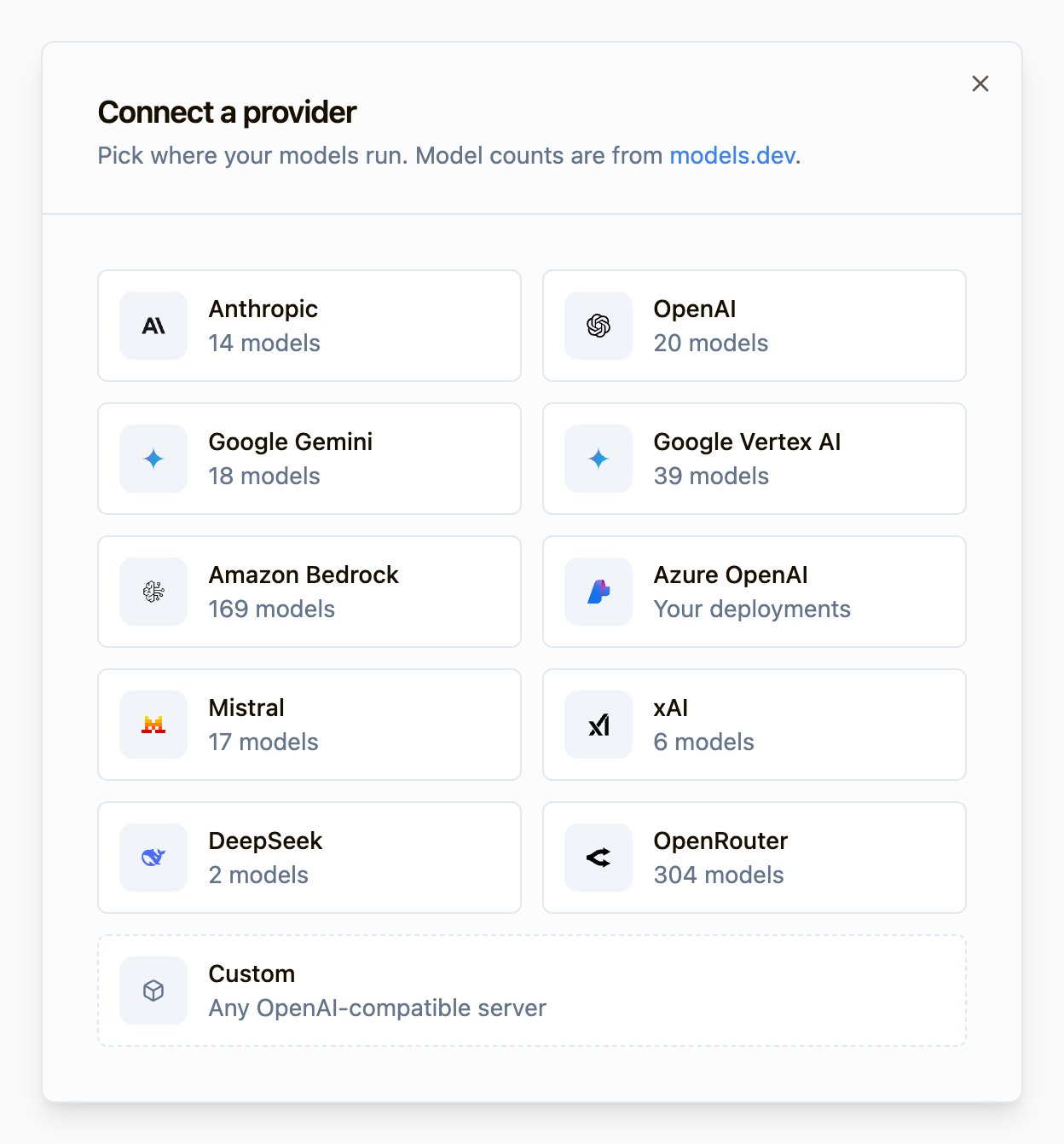
  2. Pick a provider, or Custom for any OpenAI-compatible server.
  3. Enter the provider’s details and credentials.
  4. Click Check and connect.
Sourcebot checks the credentials, lists the provider’s models, and fills the modes with them. The owner can also connect a provider during onboarding, on the Connect a model step, which you can skip.
The Connect a provider dialog, listing each provider and how many models it offers

What each provider needs

The sections below describe each field. For keys and cloud identities, see Authentication.

Common fields

Most providers have these fields under Advanced.

Google Vertex AI

Vertex AI serves both Gemini and Claude models.

Amazon Bedrock

The credentials need permission to call models, but not to list them.

Azure OpenAI

Anthropic

Custom

For any OpenAI-compatible server, such as Ollama, vLLM or LiteLLM.

Models

Sourcebot lists the provider’s models that can chat and call tools, using models.dev. When the list is more than a day old, Sourcebot refreshes it the next time an owner opens Settings → Models. If Sourcebot can’t reach models.dev, the provider still connects, but lists no models until models.dev is reachable. Add models by ID in the meantime. Custom servers list their models either way.

Edit or disconnect

Each provider’s menu (⋯) has Edit and Disconnect. To connect a second account for the same provider, connect it again. Sourcebot adds a number to the name, such as Anthropic 2, to avoid a naming conflict.