

 MCP
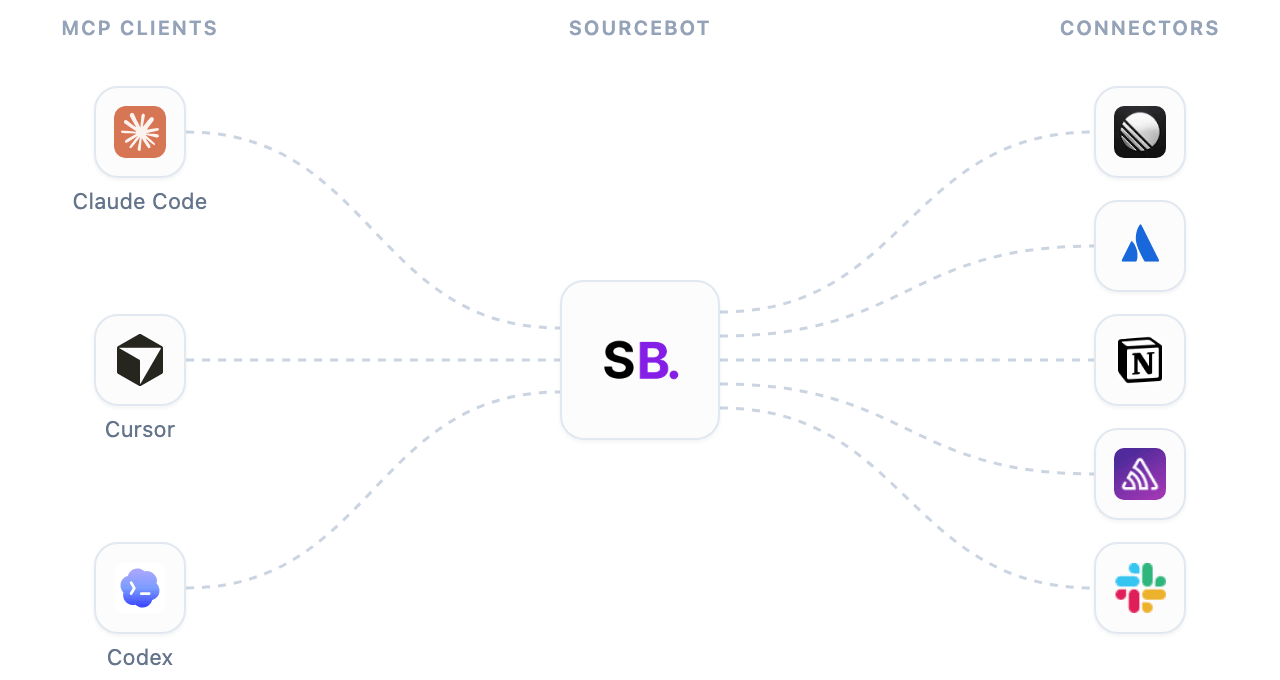
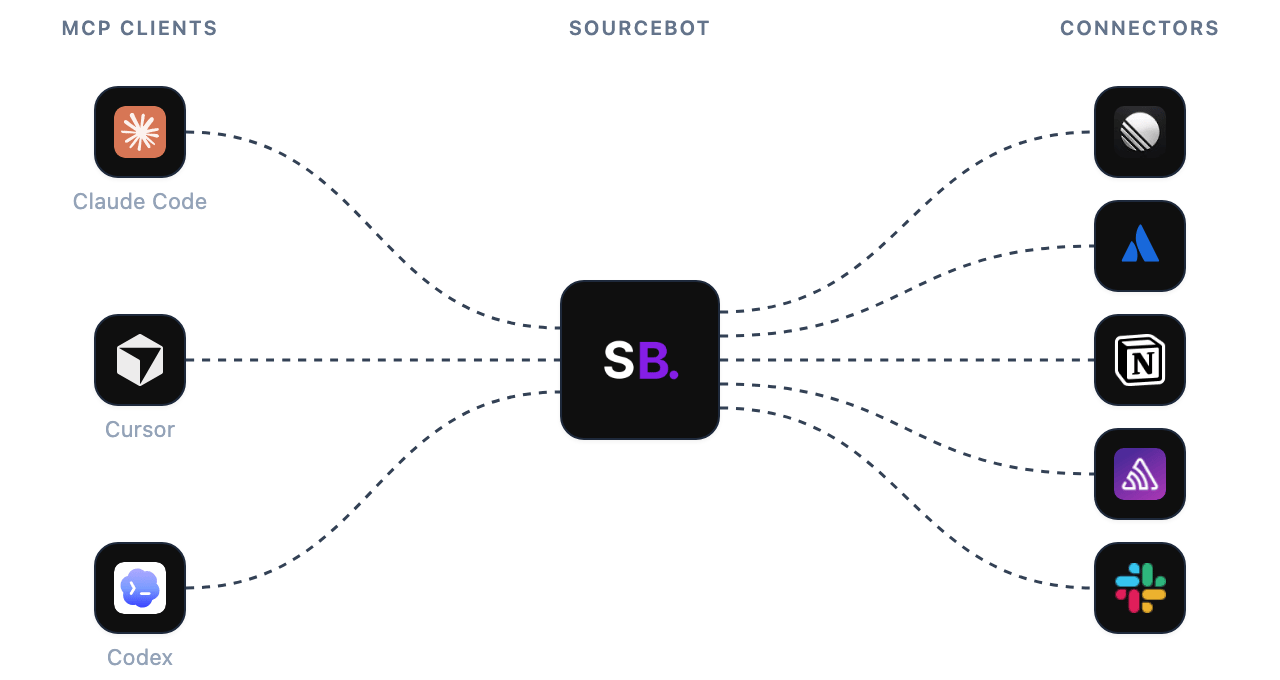
How it works
Setup
Owners manage the MCP Gateway in Settings → Workspace → MCP Gateway. You can enable or disable each connector your workspace has added to choose which ones MCP clients can use. You can also disable the MCP Gateway entirely to keep every connector out of MCP clients.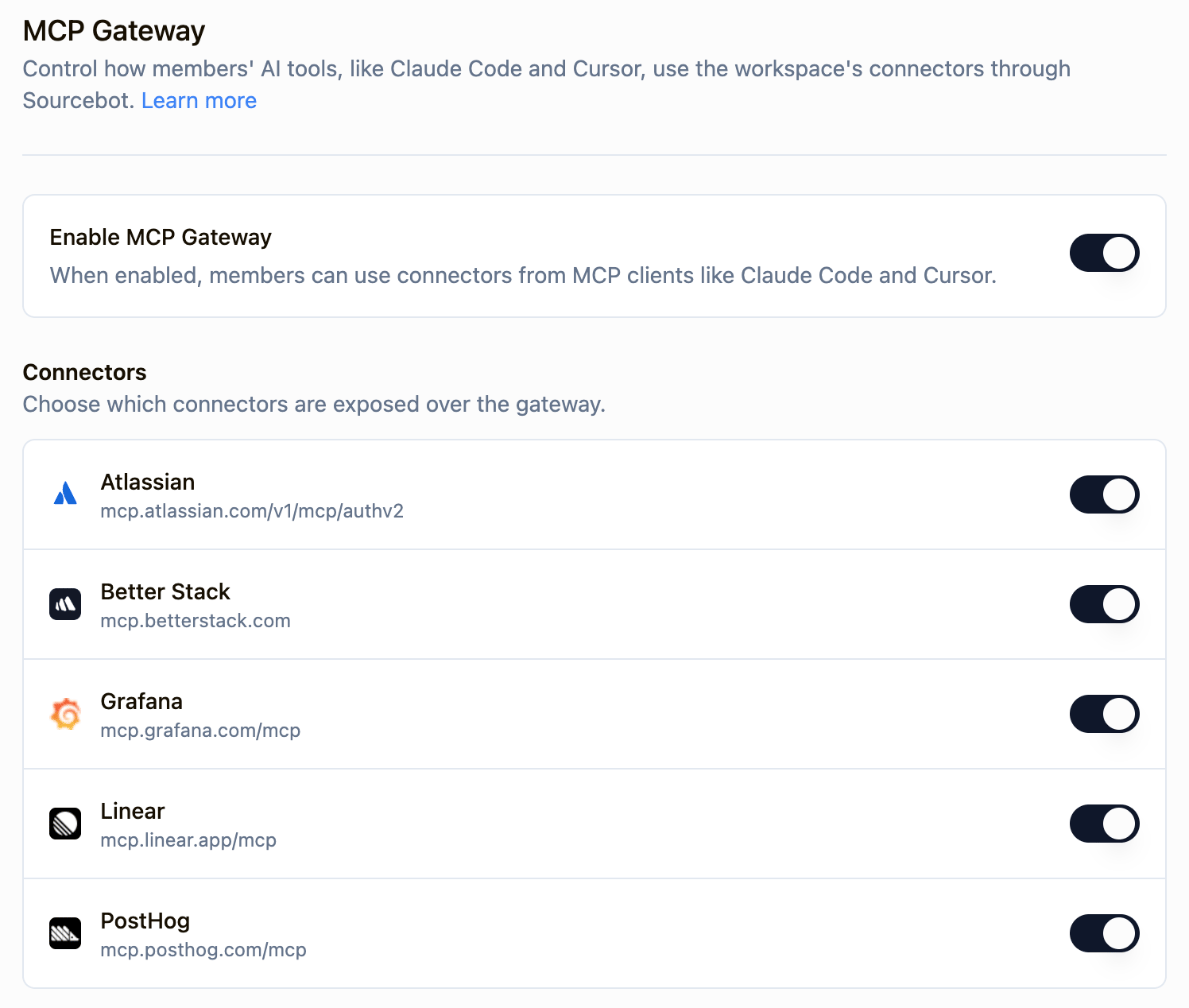
Discovery
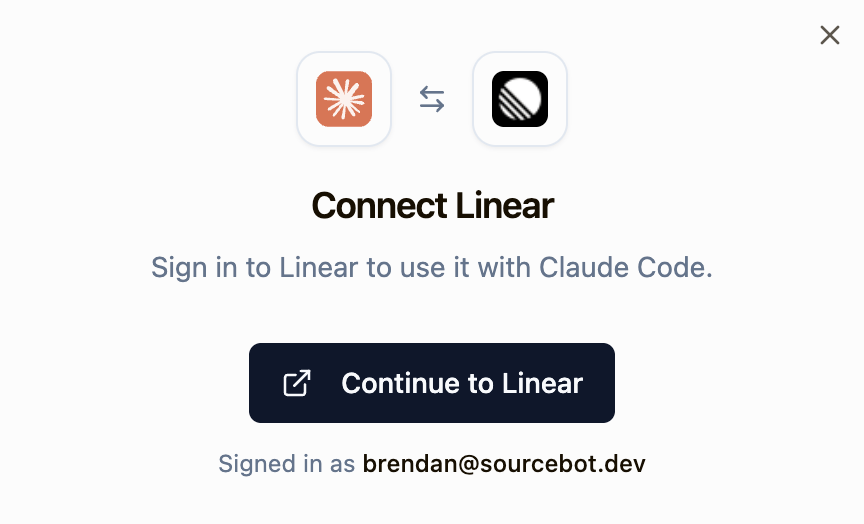
You don’t need to tell your agent which connectors you have. When your MCP client connects, Sourcebot describes your connectors and their tools, so when you ask about Linear or Jira, your agent knows which tools to use. If you ask about a connector you haven’t connected yet, your agent gives you a sign-in link withconnect_connector. You confirm in Sourcebot, then sign in to the service.
Next steps
Tool permissions
Choose which of each connector’s tools agents can use.
Setup a connector
Add the connectors your team uses, such as Linear or Jira.
Connect a connector
Share with members how they connect their own accounts.
Connector tools
See how connector tools appear in MCP clients.